How to Create Post with Limbu AI
Master the Post Management dashboard. Learn how to use our AI tools to generate, preview, and publish stunning content for your business.
The Creation Panel
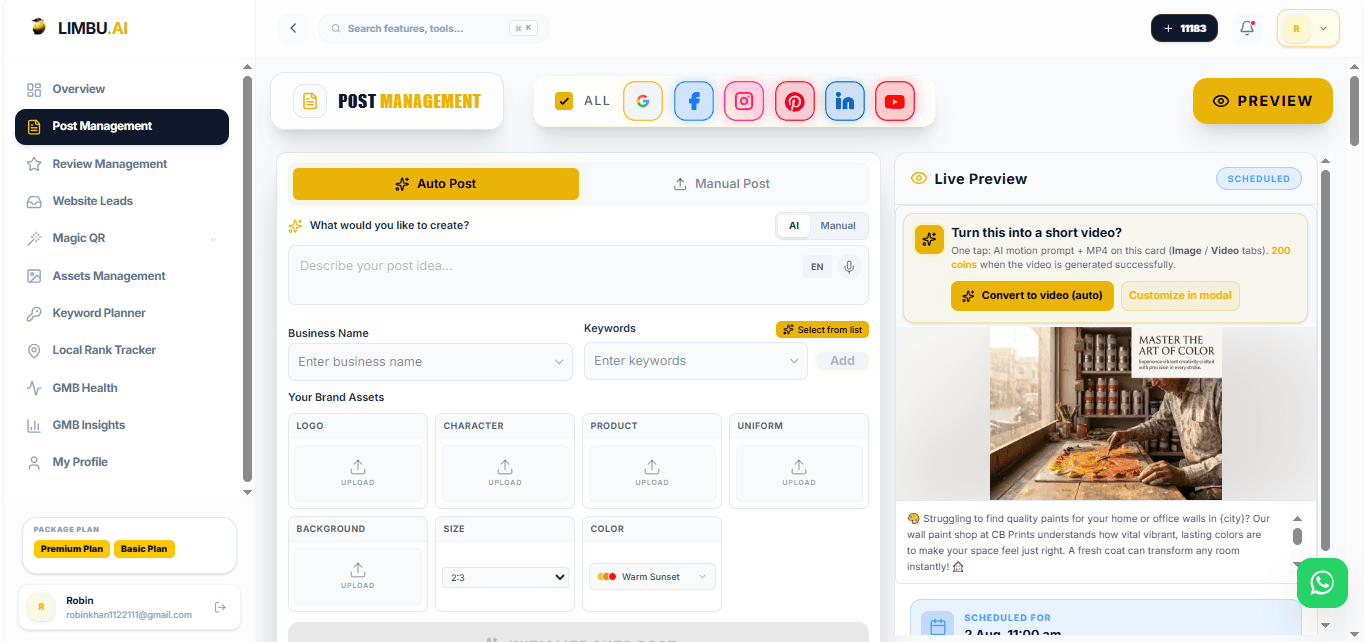
Step 1: Access the Post Studio
Inside your Limbu AI Dashboard, click on 'Post Management' in the left sidebar. This opens your creative workspace.
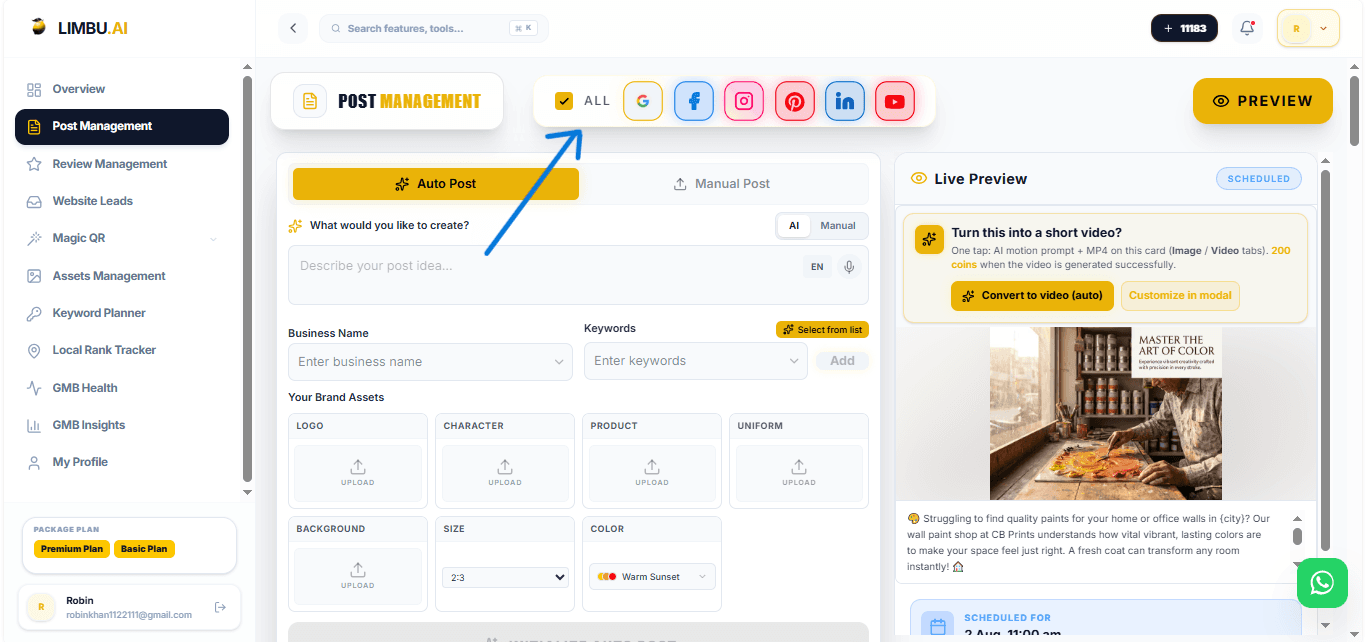
Step 2: Choose Your Platforms
At the top, you'll see toggles for ALL, Google (G), Facebook (F), and Instagram (I). Select where you want your post to appear.
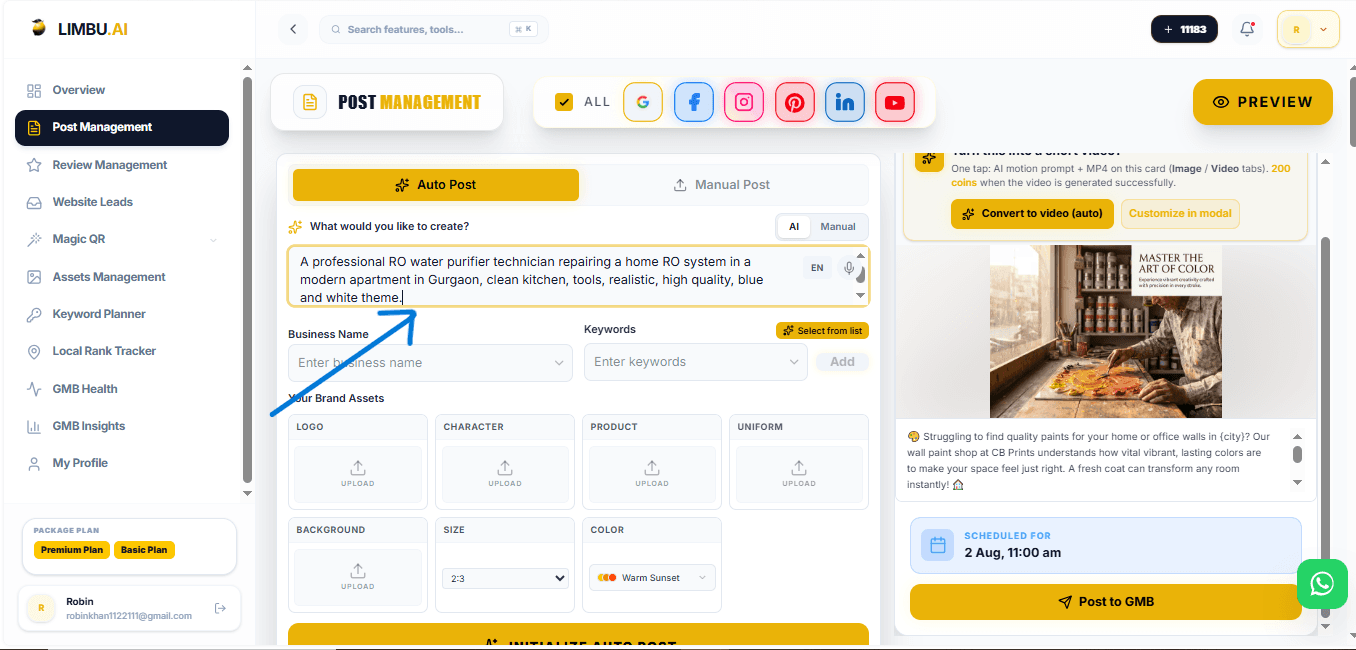
Step 3: The AI Prompt Box
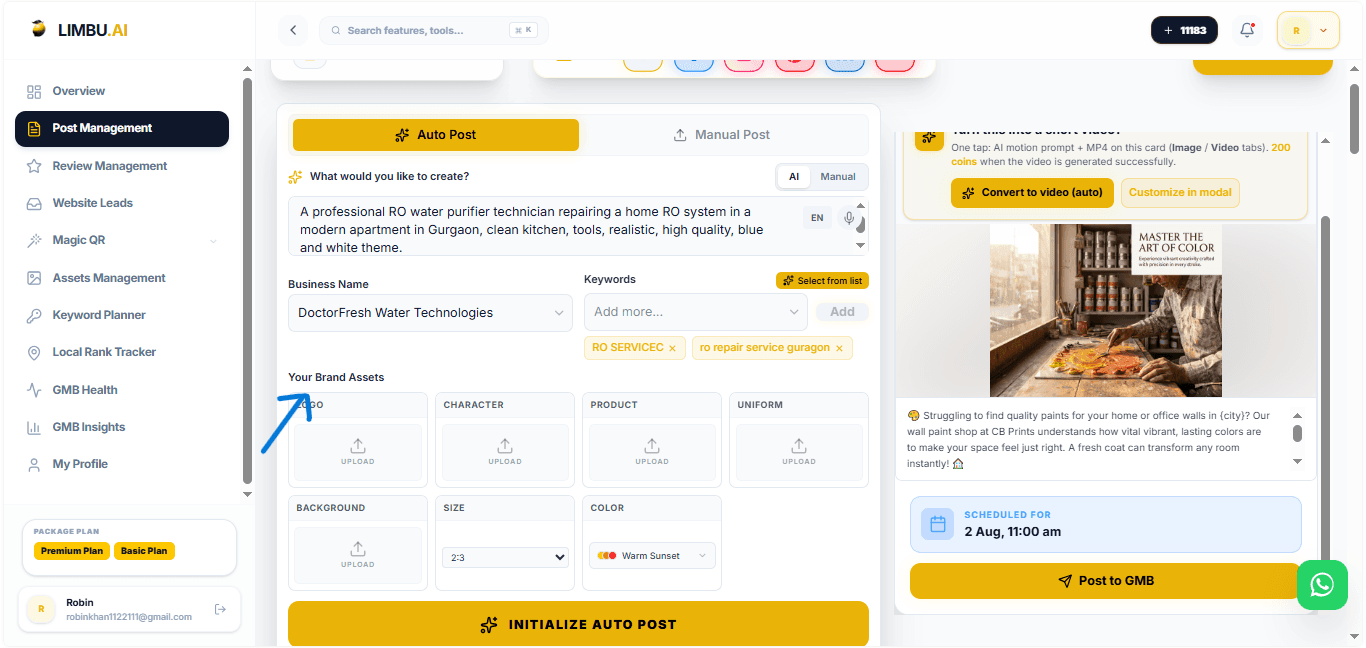
Tell the AI what to create in the 'What would you like to create?' box. You can type it out or click the Microphone icon to use your voice!
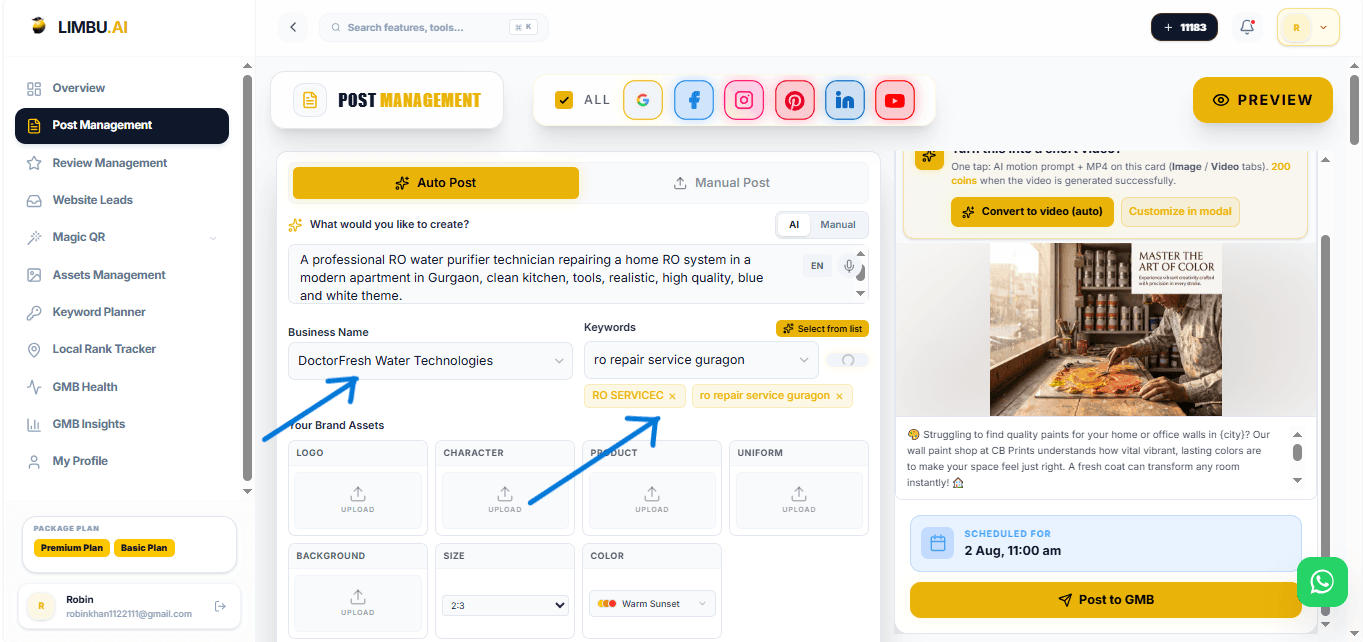
Step 4: Business & Keywords
Select your Business Name and add relevant Keywords. This ensures the AI uses the right context for your specific location.
Step 5: The Brand Studio
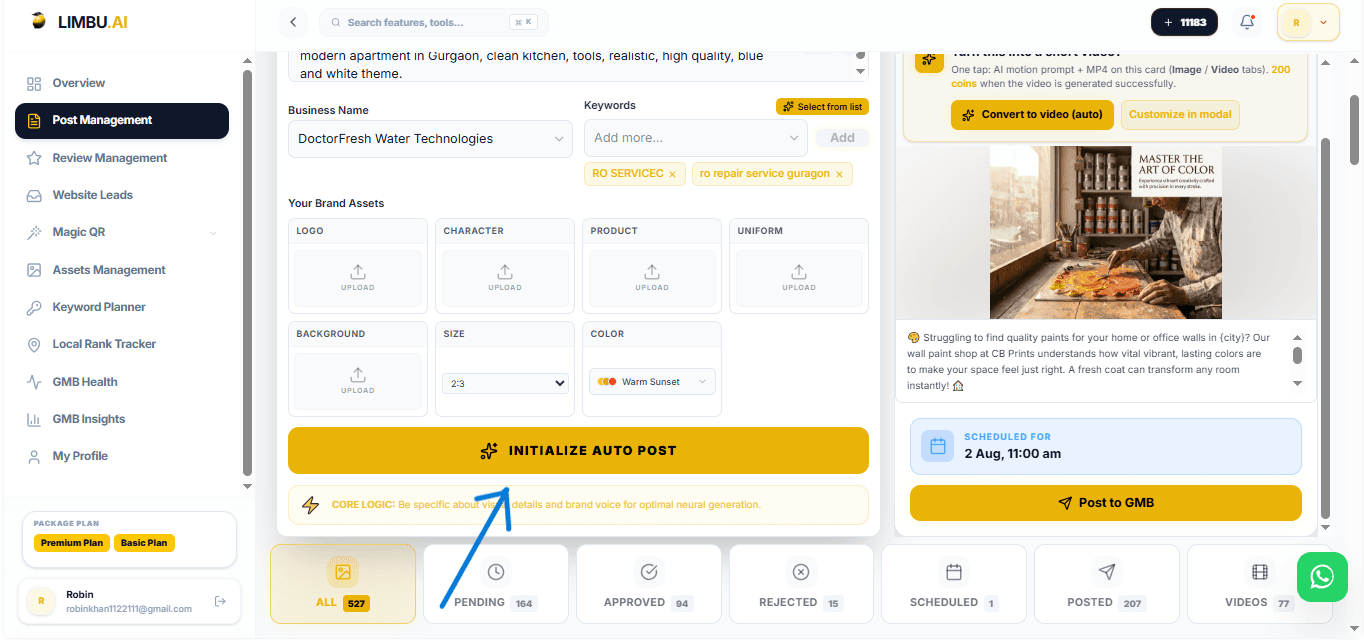
Upload your Logo, Product images, or even staff in 'Uniform'. Choose your preferred 'Size' (e.g., 3:4 for Instagram) and 'Color' theme to match your brand.
Step 6: Initialize AI Magic
Click 'INITIALIZE AUTO POST'. Limbu AI will now combine your prompt, assets, and branding into a stunning professional post.
Quick Tips for Perfect Posts
Voice Input
Too busy to type? Use the microphone icon to speak your post idea directly to Limbu AI.
Asset Studio
Upload 'Brand Assets' like your logo or product photo to ensure every post stays true to your business identity.
Consistency
Use the 'Schedule' feature to plan a whole week of posts in one sitting, keeping your business top-of-mind.