How to Connect Your
Google Business Profile
Follow these simple steps to securely link your Google Business Profile (GBP) account to Limbu AI and unlock powerful AI-driven automation.
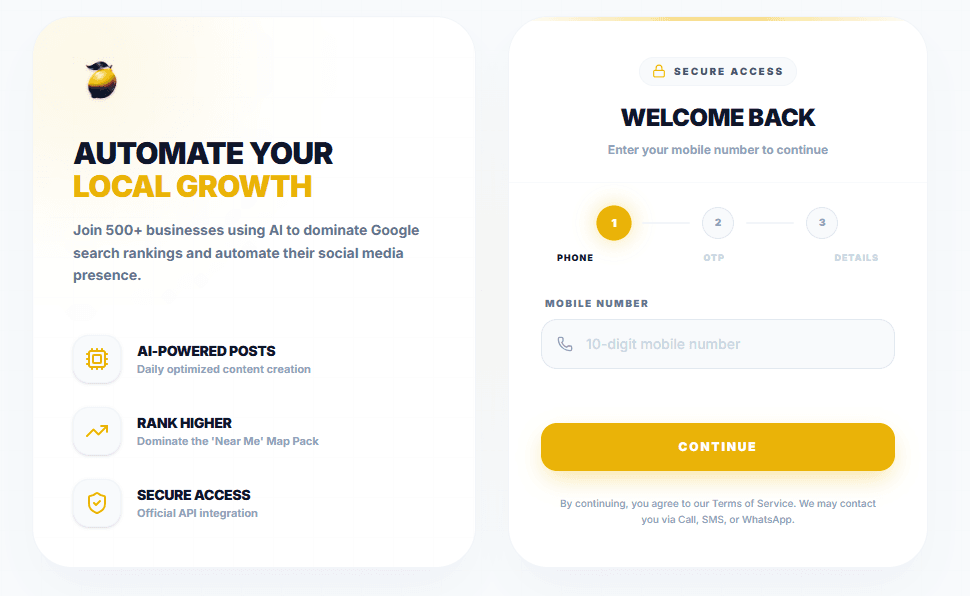
Log into Limbu AI
Go to the Limbu AI portal and log into your account using your credentials to access your personalized workspace.
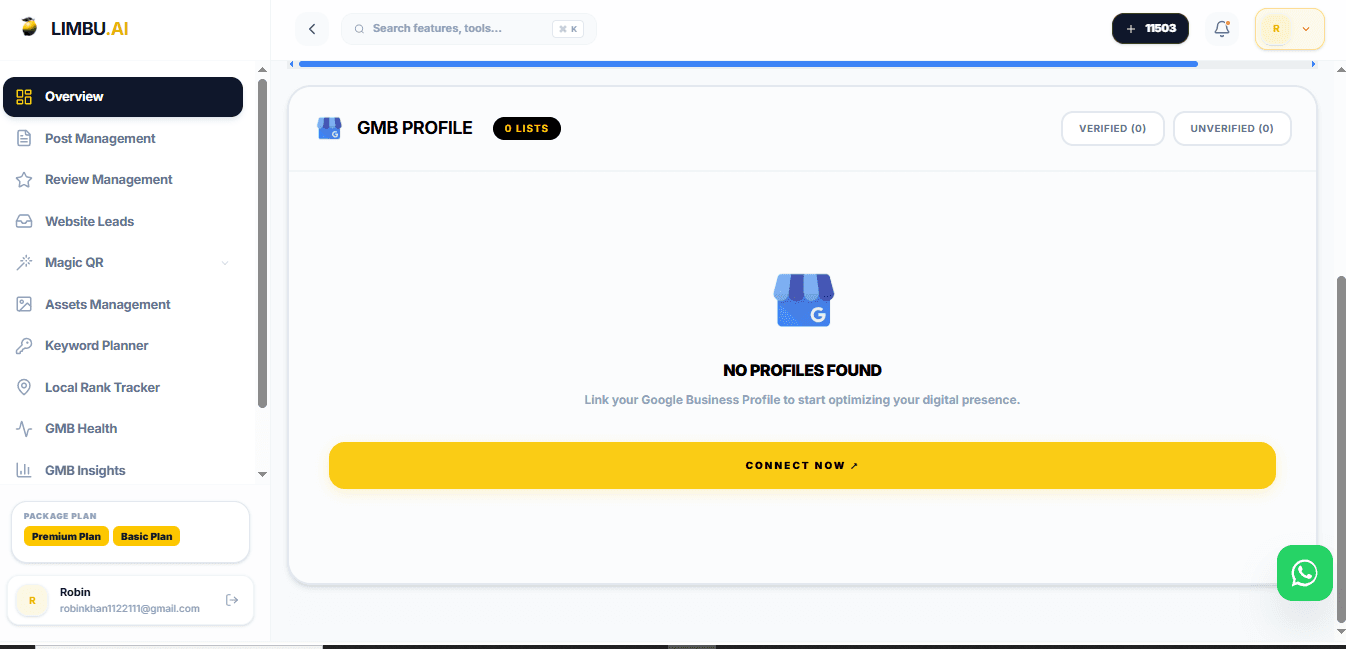
Click the Plus (+) Icon on Dashboard
Once logged in, navigate to your main Dashboard. Look for the 'Add Google Account' section and click on the Plus (+) icon to initiate the connection.
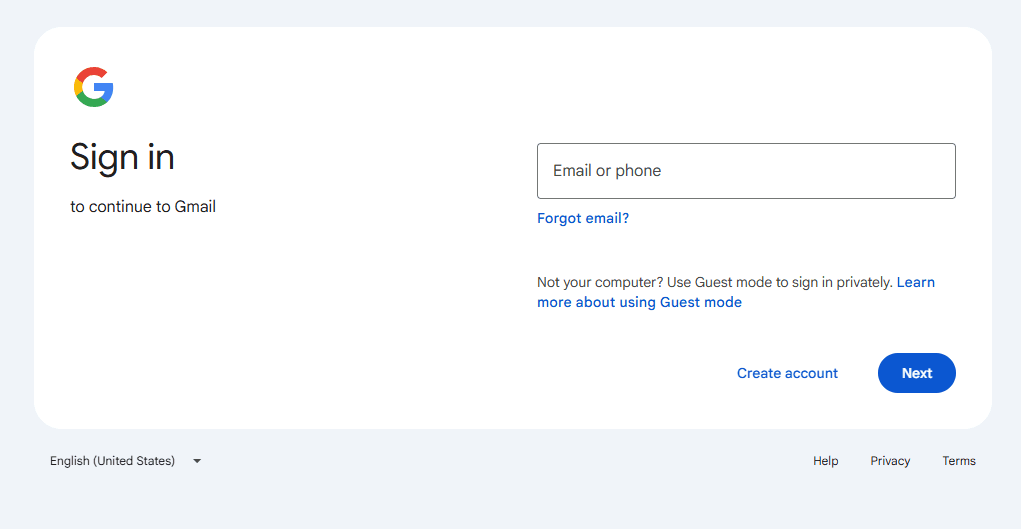
Log into your Google Account
A secure Google window will open. Sign in with the exact Gmail address that manages your Google Business Profile so Limbu AI can find the right listings.
Choose an Account
The 'Choose an account' screen will show every Google account signed in on this browser. This is where you pick the one connected to your business.
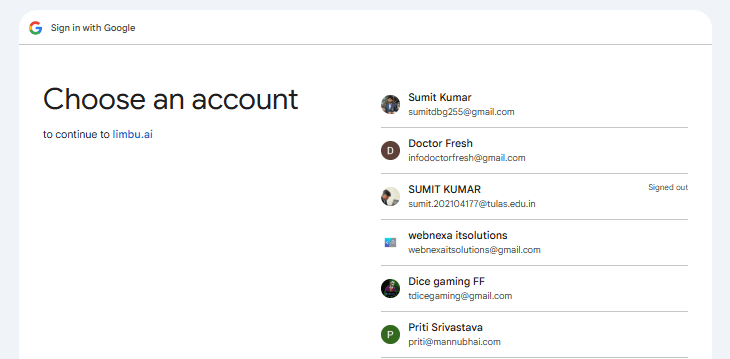
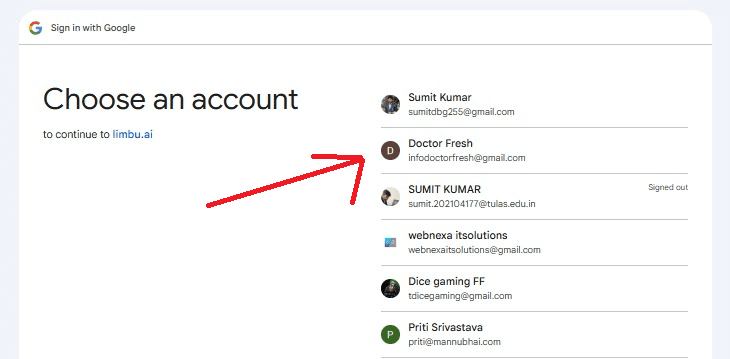
Select the Account that Manages your GBP
Click the exact email address that owns or manages your Google Business Profile. Picking the wrong account will show zero or incorrect listings.
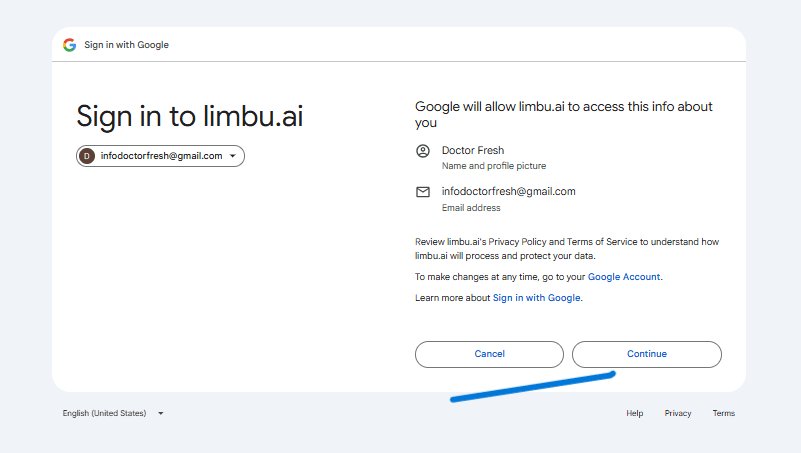
Review & Click Continue
Google will show what limbu.ai can access — your name, profile picture and email address. Review the details and click 'Continue' to proceed.
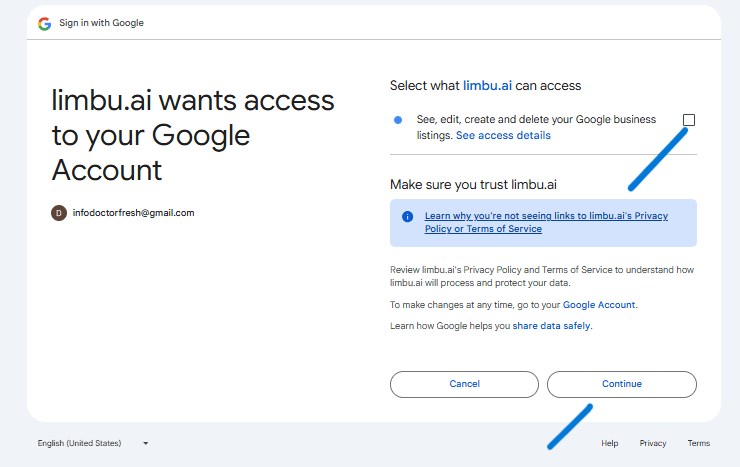
Allow Business Listing Permissions
On the permissions screen, tick the checkbox for 'See, edit, create and delete your Google business listings', then click 'Continue'. Without this checkbox Limbu AI cannot manage your listings.
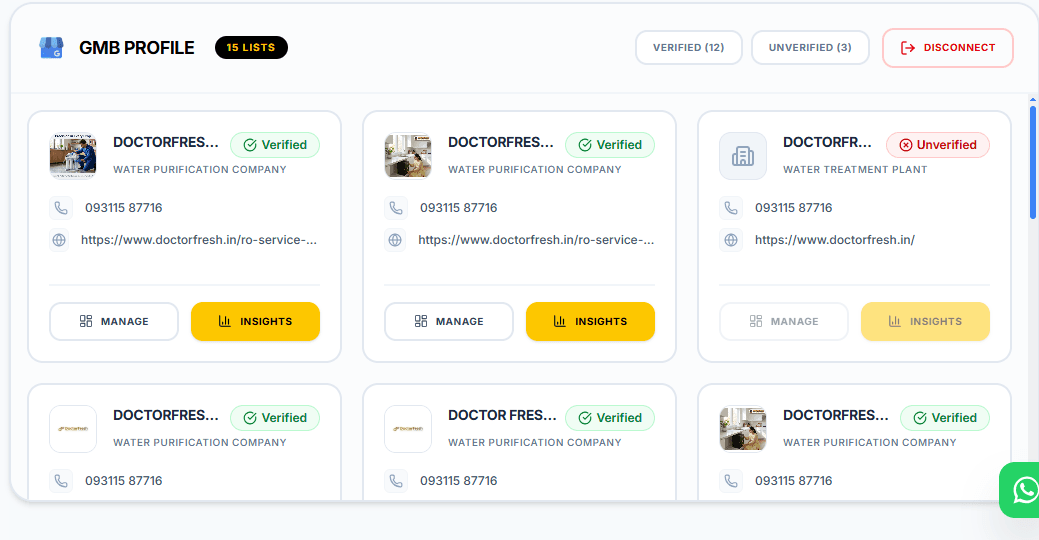
Your GBP Profiles are Connected
Done! All your business listings now appear in the GBP Profile section of your dashboard with verified/unverified status. Use 'Manage' or 'Insights' on any location to start automating.